
Start with the job
Quick answer
Start with where the frame will live. A dedicated calendar suits a shared kitchen; an Android display offers more app flexibility; a dashboard suits people willing to configure their own screen.
This guide focuses on physical placement and appliance-versus-dashboard tradeoffs. For schedules, chores and daily family workflows, use our family digital-calendar comparison. Images are representative brand media, not a to-scale or side-by-side hardware test. Skylight shows the original Calendar, not Calendar 2.
Different jobs, different choices
Use-case shortlist
These labels describe different needs. The shared overall product scores are editorial assessments, not scores for an individual feature.
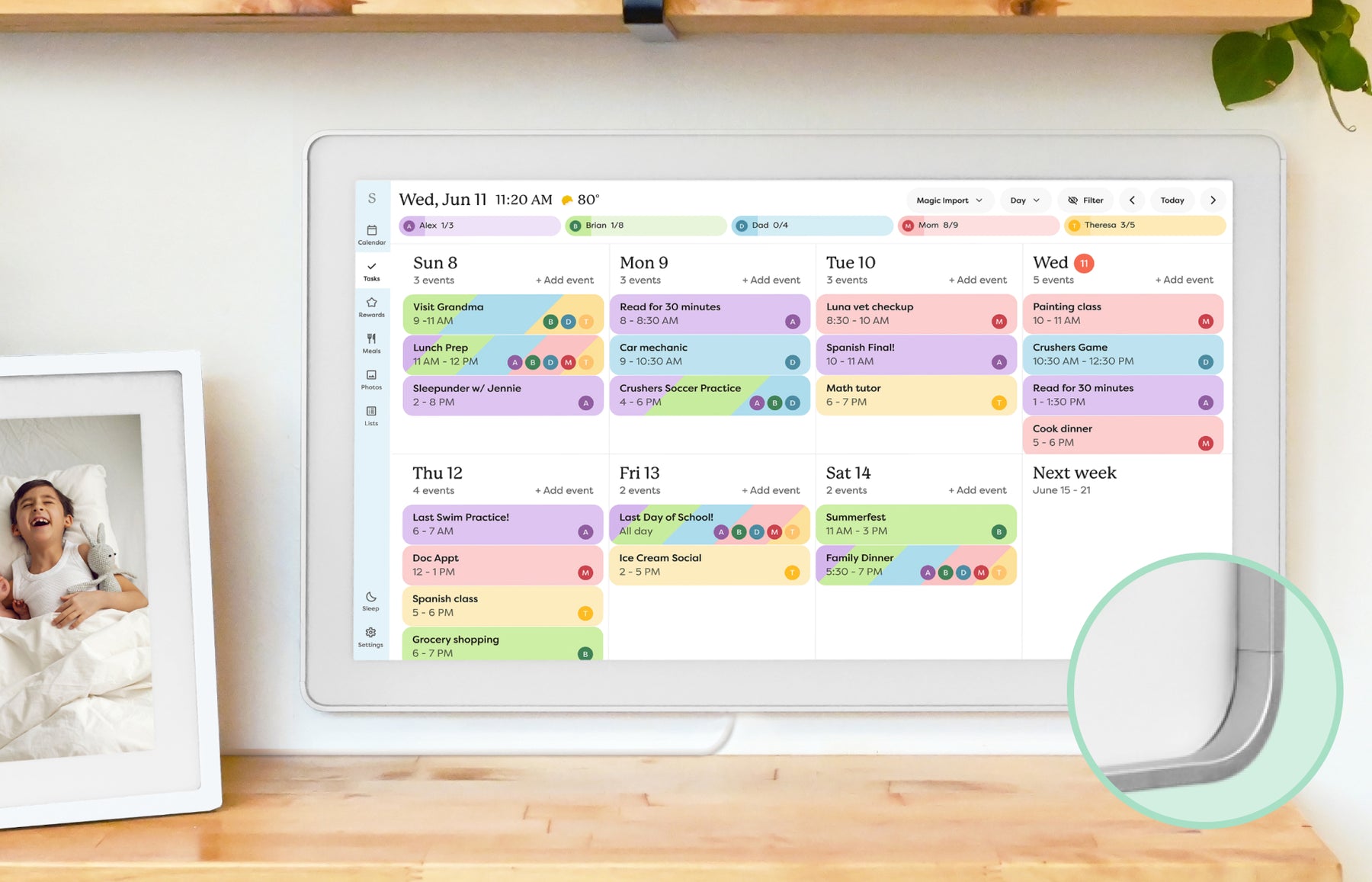
Best overall
Skylight Calendar
The clearest mainstream smart-calendar frame reference point.
8.6/10 overall editorial score
- Display & setup fit
- 10-, 15- and 27-inch family; match the generation and size. Stand on smaller models; Max is wall-mount only. Shared events, tasks and lists through a dedicated display and companion app.
- Cost boundary
- Core calendars, tasks and lists are free. Calendar Plus adds imports, rewards, meal planning and photo screensaver features.
- Know the limits
- Skip if you need an open Android dashboard. Calendar 2 changes hardware, not the free/paid software split; do not confuse it with the original Calendar pictured here. Needs Wi-Fi and outlet power.
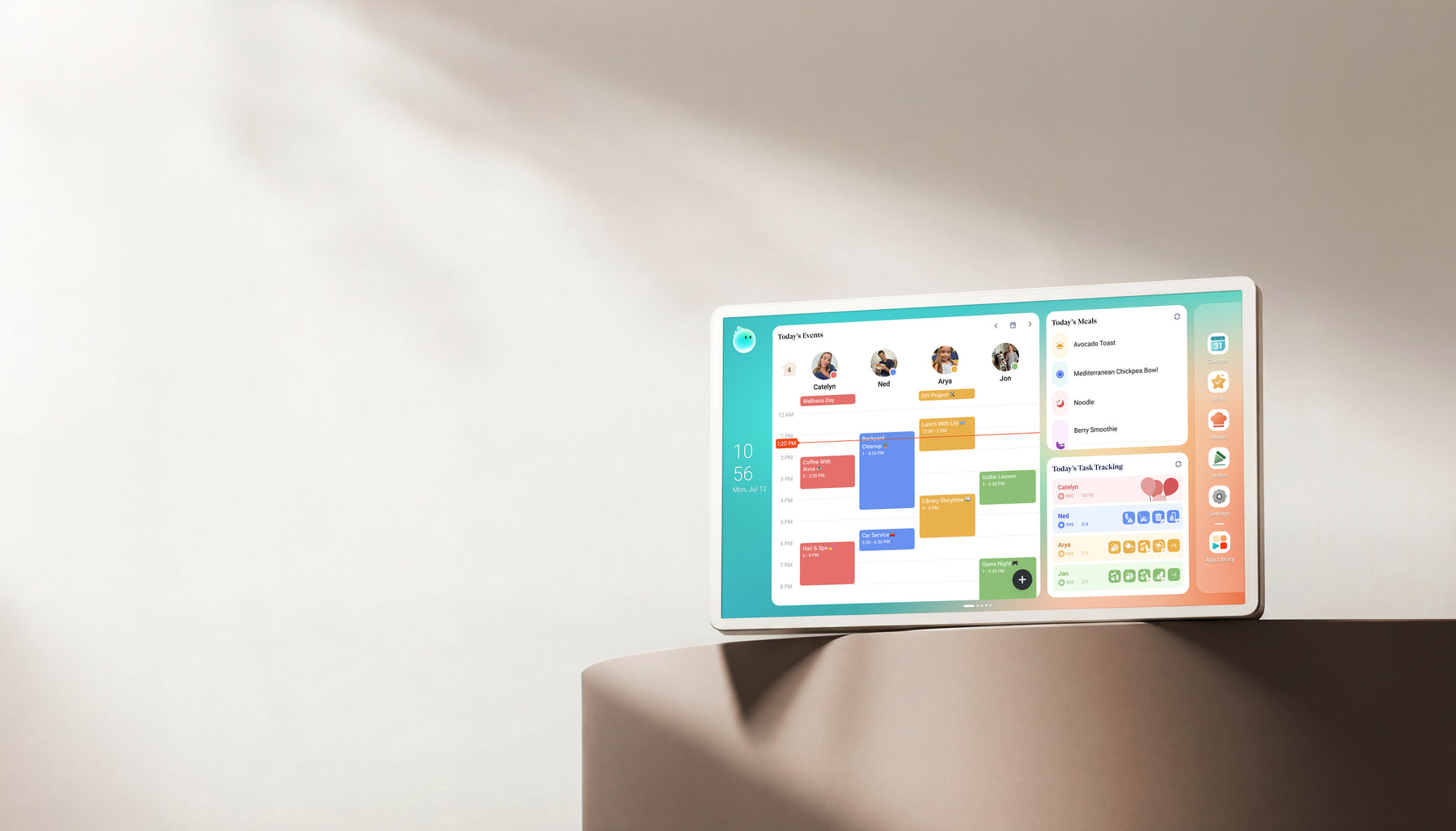
Best alternative
Cozyla Calendar+
A flexible candidate for families comparing calendar and photo-display value.
8.2/10 overall editorial score
- Display & setup fit
- Calendar+ 2 reference model; verify the size and generation. CalendarOS and Android app/widget setup. Android family hub with CalendarOS, tasks, meals and app widgets.
- Cost boundary
- For Calendar+ 2, Basic and Essential benefits are described as free. Optional Calendar Super adds unlimited Agent access, curated art and full Routie Super benefits. Other models need a separate plan check.
- Know the limits
- Broad two-way marketing does not prove write-back for every calendar URL. Match the exact Calendar+ generation and size.
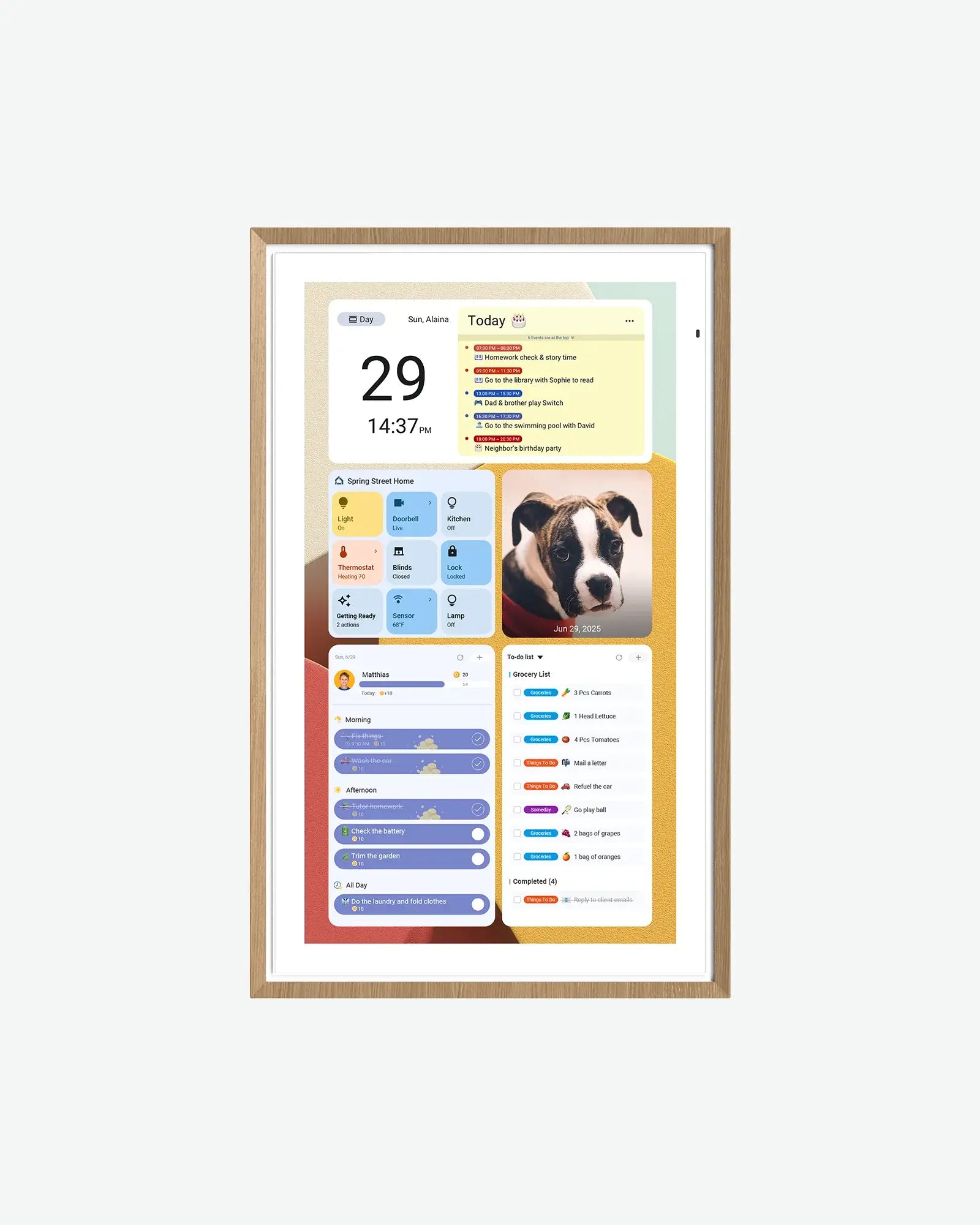
Best Android alternative
Apolosign Digital Calendar
A spec-transparent digital calendar line with Android, Google ecosystem, and no-subscription positioning.
8.0/10 overall editorial score
- Display & setup fit
- 15.6-inch model here; larger variants differ. Included desk stand on the 15.6-inch model. Calendar mode plus Android app/widget flexibility. Support documents describe two-way Google and iCloud sync.
- Cost boundary
- The 15.6-inch page lists US$279 sale / US$349 regular at this check. Core calendar, chores, rewards, to-dos and photo screensaver are advertised as free. Third-party AI services can have separate paid tiers.
- Know the limits
- Skip if Outlook write-back is essential: its URL-import path is not real-time two-way sync. The 15.6-inch box includes a desk stand; the larger variants have different mounting bundles. Android flexibility adds account and app-management work.
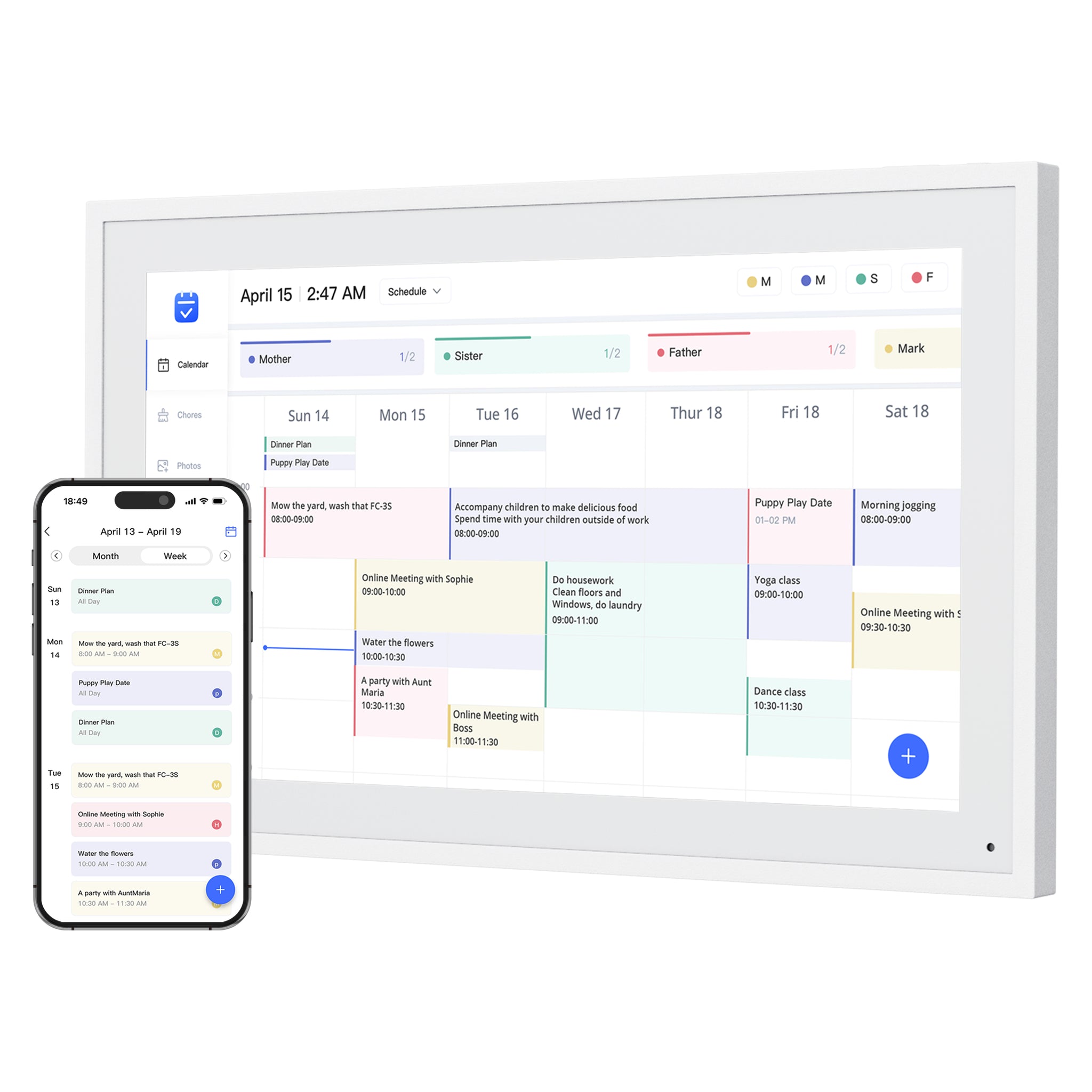
Best budget-style alternative
Dragon Touch Digital Calendar
A no-subscription-positioned eCalendar option with multiple sizes and household planning features.
7.9/10 overall editorial score
- Display & setup fit
- Multiple screen sizes; match the exact variant. eCalendar app; listed 10-inch model is not wall-mountable. eCalendar app setup, shared schedules, chore charts, dinner planning and family photos.
- Cost boundary
- The product page describes these core tools as free, but explicitly separates paid Magic Import. A no-subscription headline does not mean every tool is free.
- Know the limits
- Skip if you cannot use a compatible phone or tablet for setup. Provider logos alone do not prove write-back. Size-specific mounting matters: the listed 10-inch version cannot be wall mounted.
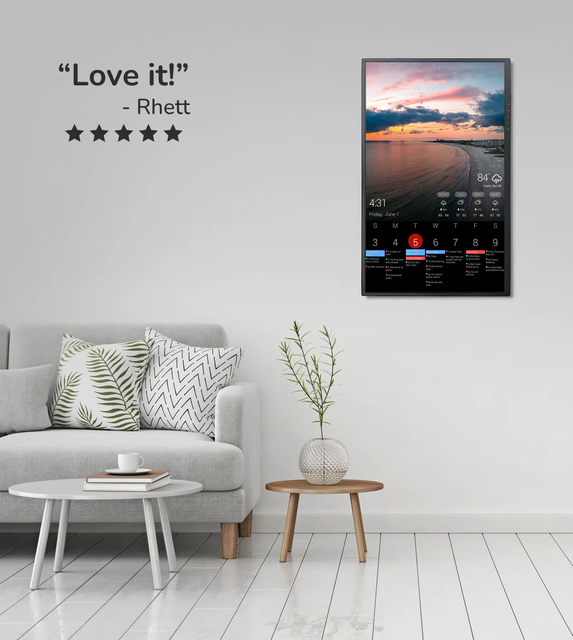
Best dashboard path
DAKboard Display
Strong for users who want a configurable calendar display.
7.8/10 overall editorial score
- Display & setup fit
- Hardware selected separately from dashboard software. Dedicated hardware or a compatible screen you own. A configurable calendar, photos and information dashboard. Hardware and dashboard software are separate choices.
- Cost boundary
- Free: one predefined screen and up to two calendars. Essential: US$6/month or US$5/month billed annually, with up to five calendars. Display hardware costs extra.
- Know the limits
- Skip if you want a turnkey chore-and-reward workflow without configuration. TouchHub is now listed even on Free; that does not make every DAKboard display touchscreen hardware.
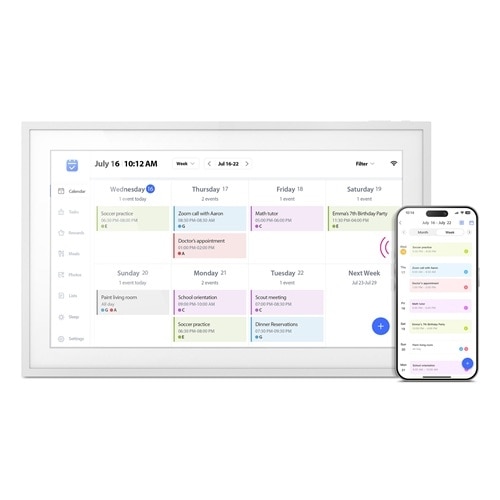
Best retail-spec eCalendar
Aluratek AWFC15F eCalendar
A specific 15.6-inch eCalendar SKU with clear screen, storage, and app facts.
7.7/10 overall editorial score
- Display & setup fit
- 15.6-inch 1080p touchscreen. Adjustable stand or wall placement. AWFC15F: 15.6-inch 1080p touchscreen, eCalendar app, chores, meal plans and photos; adjustable stand and wall placement.
- Cost boundary
- Official listing: US$269.99 and no subscription fees for this frame at this check.
- Know the limits
- Skip if you require independently verified provider-specific two-way sync or long-term app reliability. The official compatibility list is broader than our hands-on evidence. Match AWFC15F, not an Aluratek photo-only frame.
Features with boundaries
Compare placement and setup tradeoffs
On a smaller screen, swipe the table sideways to see costs and limits. With a keyboard, focus the table and use the arrow keys.
| Product | Display & setup fit | Cost boundary | Limits & sources |
|---|---|---|---|
| Skylight Calendar | 10-, 15- and 27-inch family; match the generation and size. Stand on smaller models; Max is wall-mount only. Shared events, tasks and lists through a dedicated display and companion app. | Core calendars, tasks and lists are free. Calendar Plus adds imports, rewards, meal planning and photo screensaver features. | Skip if you need an open Android dashboard. Calendar 2 changes hardware, not the free/paid software split; do not confuse it with the original Calendar pictured here. Needs Wi-Fi and outlet power. |
| Cozyla Calendar+ | Calendar+ 2 reference model; verify the size and generation. CalendarOS and Android app/widget setup. Android family hub with CalendarOS, tasks, meals and app widgets. | For Calendar+ 2, Basic and Essential benefits are described as free. Optional Calendar Super adds unlimited Agent access, curated art and full Routie Super benefits. Other models need a separate plan check. | Broad two-way marketing does not prove write-back for every calendar URL. Match the exact Calendar+ generation and size. |
| Apolosign Digital Calendar | 15.6-inch model here; larger variants differ. Included desk stand on the 15.6-inch model. Calendar mode plus Android app/widget flexibility. Support documents describe two-way Google and iCloud sync. | The 15.6-inch page lists US$279 sale / US$349 regular at this check. Core calendar, chores, rewards, to-dos and photo screensaver are advertised as free. Third-party AI services can have separate paid tiers. | Skip if Outlook write-back is essential: its URL-import path is not real-time two-way sync. The 15.6-inch box includes a desk stand; the larger variants have different mounting bundles. Android flexibility adds account and app-management work. |
| Dragon Touch Digital Calendar | Multiple screen sizes; match the exact variant. eCalendar app; listed 10-inch model is not wall-mountable. eCalendar app setup, shared schedules, chore charts, dinner planning and family photos. | The product page describes these core tools as free, but explicitly separates paid Magic Import. A no-subscription headline does not mean every tool is free. | Skip if you cannot use a compatible phone or tablet for setup. Provider logos alone do not prove write-back. Size-specific mounting matters: the listed 10-inch version cannot be wall mounted. |
| DAKboard Display | Hardware selected separately from dashboard software. Dedicated hardware or a compatible screen you own. A configurable calendar, photos and information dashboard. Hardware and dashboard software are separate choices. | Free: one predefined screen and up to two calendars. Essential: US$6/month or US$5/month billed annually, with up to five calendars. Display hardware costs extra. | Skip if you want a turnkey chore-and-reward workflow without configuration. TouchHub is now listed even on Free; that does not make every DAKboard display touchscreen hardware. |
| Aluratek AWFC15F eCalendar | 15.6-inch 1080p touchscreen. Adjustable stand or wall placement. AWFC15F: 15.6-inch 1080p touchscreen, eCalendar app, chores, meal plans and photos; adjustable stand and wall placement. | Official listing: US$269.99 and no subscription fees for this frame at this check. | Skip if you require independently verified provider-specific two-way sync or long-term app reliability. The official compatibility list is broader than our hands-on evidence. Match AWFC15F, not an Aluratek photo-only frame. |
Sources describe advertised capabilities and terms, not independent reliability tests. Specific-source checks for this guide: October 13, 2026. Linked product profiles retain their separate research dates. Prices, allowances and support terms can change.
Make the decision
What to check before choosing
Measure the room before choosing a screen
Check wall or counter placement from the position where the family will actually read and touch the frame. Diagonal screen size does not describe the full enclosure, cable route or mounting clearance.
- Mark the full device outline and outlet location before ordering.
- A wall screen readable from the doorway may still be too high for a child to use.
- A countertop stand needs a stable surface and room behind the frame for power.
Choose an appliance or a configurable screen
A dedicated calendar reduces the number of apps the household needs to manage. Android flexibility can add useful widgets, but it also brings permissions, accounts and maintenance. Our tablet comparison explains why an open screen is not automatically an easier family appliance.
- Skylight is a dedicated calendar path; Calendar Plus remains a separate paid decision.
- Cozyla and Apolosign add app flexibility, with exact-model and provider limitations.
- DAKboard separates dashboard software from compatible hardware; touch support depends on the screen.
Check the calendar account before the mounting kit
Review calendar sync paths for the provider and account type your family uses. Read-only imports can show the schedule without letting someone edit it back to Google, Apple or Outlook.
- Apolosign support distinguishes Google/iCloud two-way sync from its Outlook URL-import limitation.
- A shared eCalendar app name does not prove identical firmware or support across hardware brands.
- School and work accounts can restrict third-party permissions even when a provider is advertised.
Photo mode is a second buying decision
Our calendar-versus-photo-frame guide separates a planning screen from a memories-first display. Compare the actual photo mode, paid tier and privacy controls rather than assuming any frame-shaped calendar replaces a photo frame.
- Skylight photo screensaver is a Calendar Plus feature.
- AI photo animation is different from calendar scheduling assistance.
- Account sharing, deletion and visitor visibility matter on a common-room screen.
Practical details
Common questions
Is a bigger calendar frame always better?
No. Readability, touch reach, enclosure size and outlet placement matter together. Our wall or counter placement guide helps you check the intended location before choosing a size.
Can every digital calendar be wall mounted?
No. Dragon Touch lists its 10-inch version as not wall-mountable; Skylight Max is wall-mount only. Check the exact variant and included hardware in the product review.
Can I install any calendar app on these frames?
No. Android app access, companion-app pairing and a configurable dashboard are different setups. A brand-specific companion app does not establish compatibility with an arbitrary tablet.
Where should I compare chores and household routines?
Use our family digital-calendar comparison for daily workflows, paid features and documented limitations. This guide concentrates on the frame and its placement.
Explore the details
Skylight CalendarRead the evidence and buying limitsCozyla Calendar+Read the evidence and buying limitsApolosign Digital CalendarRead the evidence and buying limitsRelated reading
Read the buying details
These guides explain the tradeoffs behind the comparison.
Useful next steps
- Compare family workflowsSchedules, chores, routines and provider limitations.
- Plan the placementWall mounting, counter space and reach.
- Compare display apps and softwareCompanion platforms, exact-device pairing and shared-app limits.
SmartFrameLab does not sell placements or run display ads. Some buying links on linked reviews are affiliate links; see our commercial disclosure.